![[React Native] Flexbox로 레이아웃](https://img1.daumcdn.net/thumb/R750x0/?scode=mtistory2&fname=https%3A%2F%2Fblog.kakaocdn.net%2Fdna%2FcZYRwQ%2FbtsMpKJZzx0%2FAAAAAAAAAAAAAAAAAAAAAO7SKiacAEjJ1TxrJxCvUtfIl3lANptOx12f-48Craeb%2Fimg.png%3Fcredential%3DyqXZFxpELC7KVnFOS48ylbz2pIh7yKj8%26expires%3D1782831599%26allow_ip%3D%26allow_referer%3D%26signature%3DDI%252ByWbUpNp0n%252BC1EfwrwOlgzB4o%253D)

Flexbox란?
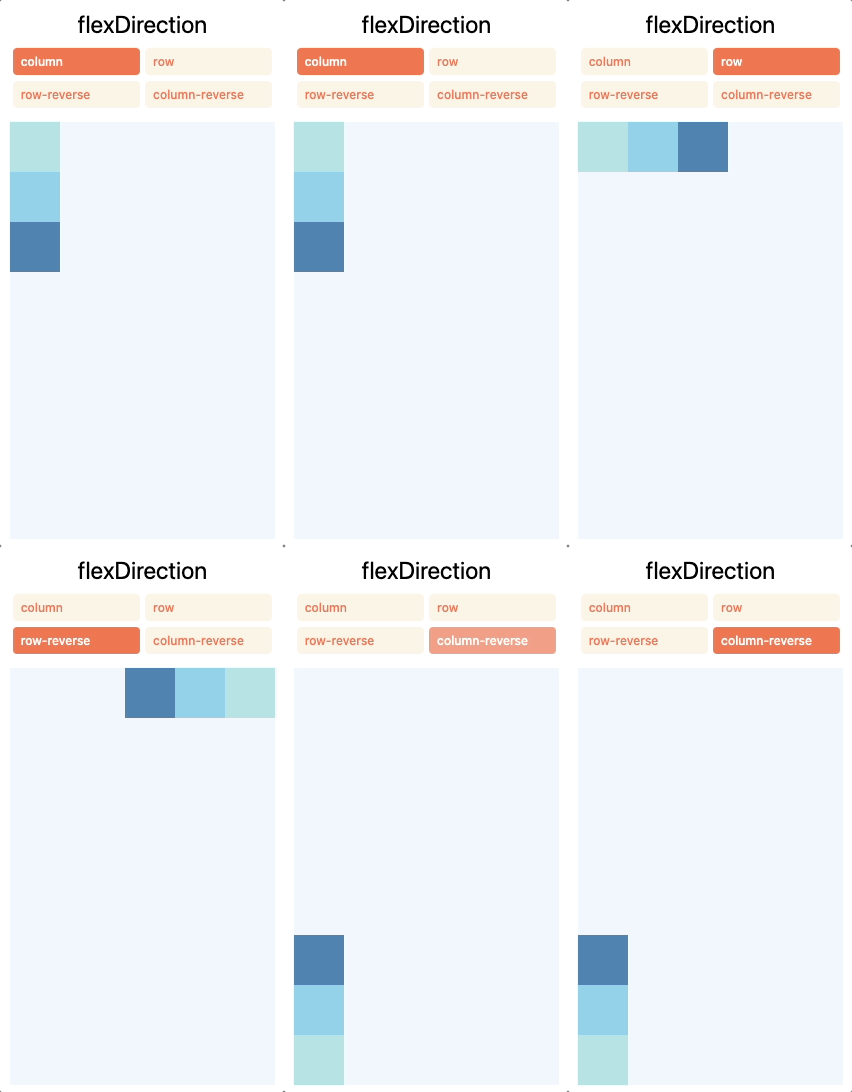
Flexbox는 React Native에서 기본적으로 사용되는 레이아웃 시스템이며, 다양한 화면 크기에서도 일관된 레이아웃을 제공하도록 설계되었습니다.
모든 <View> 컴포넌트가 기본적으로 Flexbox를 사용하여 레이아웃을 구성하기 때문에 별도의 설정 없이 레이아웃을 적용할 수 있습니다.
Flexbox는 웹에서 CSS가 동작하는 것과 같은 방식으로 동작하지만..! CSS와는 살짝 다른 부분도 있습니다.
예를 들어 flexDirection의 기본값은 행(row)이 아닌 열(column)인 것 처럼요.
display: flex도 기본으로 적용 된답니다!
Flexbox에 적용할 수 있는 프로퍼티들을 하나씩 알아가보도록 할게요!
Properties
flex
flex는 주축(main axis)을 따라 컴포넌트가 사용 가능한 공간을 채울 방법 을 정의합니다.
flex: 1이라면 사용 가능한 전체 공간을 채운다는 뜻이고, 같은 레벨에 flex를 가진 컴포넌트들이 있다면 그 숫자를 기준으로 채울 공간을 나누게 됩니다.
다음은 flex를 적용하여 컴포넌트의 크기를 할당한 코드입니다.
<View style={{flex: 1}}>
  <View style={{flex: 1, backgroundColor: 'red'}} />
  <View style={{flex: 2, backgroundColor: 'darkorange'}} />
  <View style={{flex: 3, backgroundColor: 'green'}} />
</View>
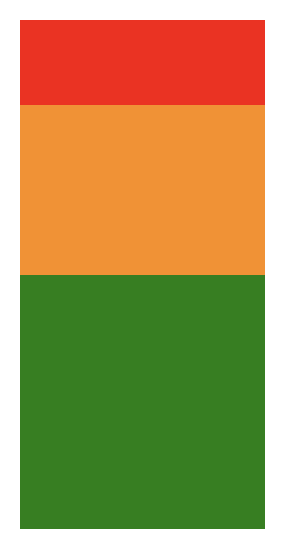
위 코드의 결과입니다!
빨강, 주황, 녹색 세 개의 컴포넌트들은 flex: 1 속성을 가진 View 컴포넌트의 자식들입니다.
flex의 할당량을 모두 합치면 1+2+3 = 6 이고, 컴포넌트의 크기는 전체에서 나눈 크기가 해당 컴포넌트의 크기가 되는 거에요.
빨강은 1/6, 주황은 2/6, 녹색은 3/6의 크기를 나눠서 가지게 됩니다!
flexDirection
flexDirection은 주축을 참고하여 자식 컴포넌트들을 배치하는 방향을 조절합니다.
주축과 반대되는 개념은 교차축(cross axis)으로, 주축과 수직으로 배치되는 축입니다.
flexDirection은 4가지의 방향이 있습니다.
• column (기본) : 자식 컴포넌트를 위 → 아래로 배치
• row : 자식 컴포넌트를 왼쪽 → 오른쪽으로 배치
• column-reverse : 자식 컴포넌트를 아래 → 위로 배치
• row-reverse : 자식 컴포넌트를 오른쪽 → 왼쪽으로 배치
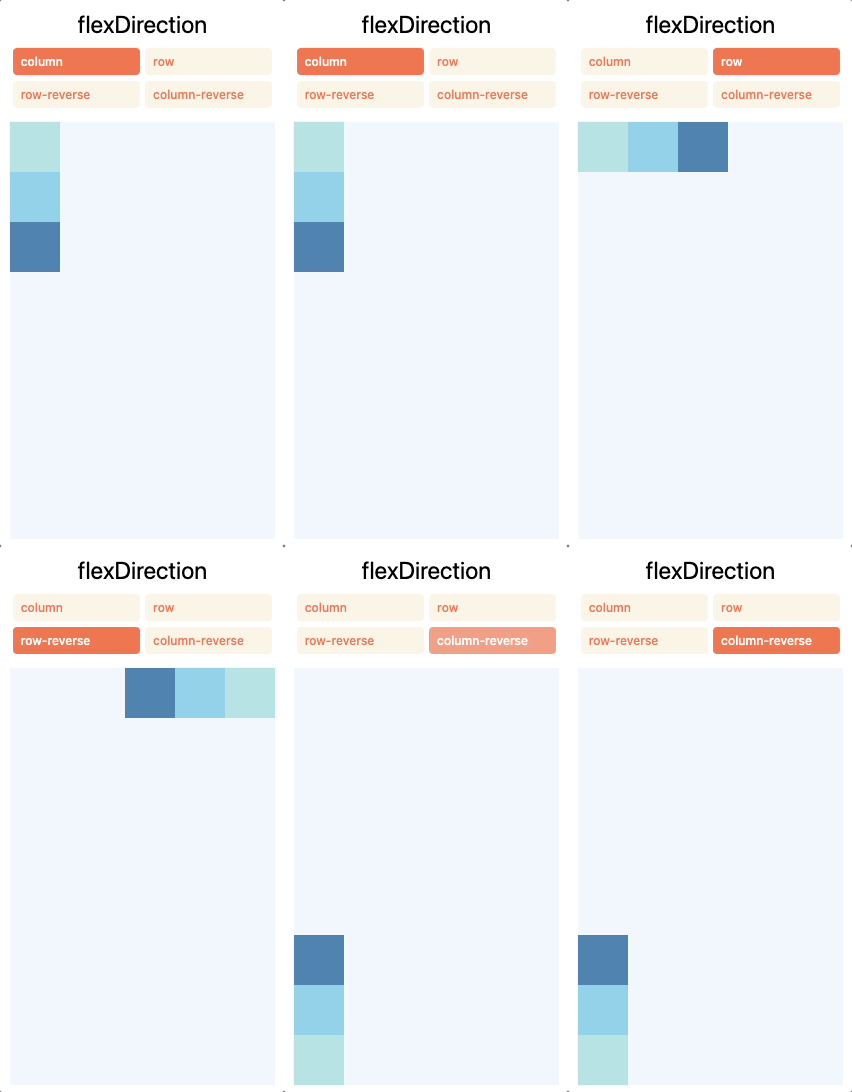
다음은 flexDirection을 다양하게 적용한 코드 예시입니다.
const FlexExample = () => {
  const flexOptions = ["column", "row", "column-reverse", "row-reverse"];
  const [flexDirection, setFlexDirection] = useState(flexOptions[0]);

  return (
  	<Button
    	  title="Change Direction"
          onPress={() => setFlexDirection(flexOptions[(flexOptions.indexOf(flexDirection) + 1) % flexOptions.length])}
        />
    	<View style={{flex: 1, marginTop: 8, backgroundColor: 'aliceblue', flexDirection}}>
      	  <View style={{width: 50, height: 50, backgroundColor: 'powderblue'}} />
      	  <View style={{width: 50, height: 50, backgroundColor: 'skyblue'}} />
      	  <View style={{width: 50, height: 50, backgroundColor: 'steelblue'}} />
    	</View>
  );
};
direction
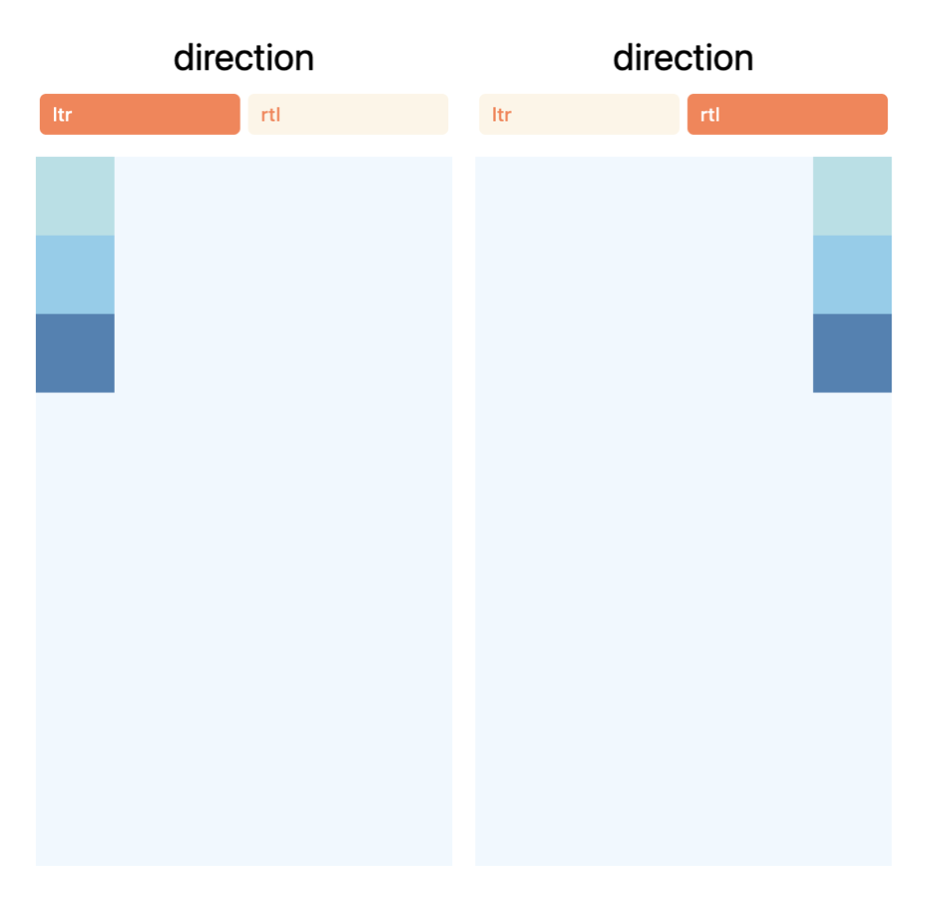
direction 프로퍼티는 텍스트와 UI 요소들이 배치되는 방향을 결정하는 속성입니다!
이 값에 따라서 start, end 같은 속성이 영향을 받아서 정렬의 기준이 변경됩니다.
• LTR (기본) : 왼쪽 → 오른쪽 정렬
start는 왼쪽, end는 오른쪽 의미
• RTL: 오른쪽 → 왼쪽 정렬
start는 오른쪽, end는 왼쪽을 의미
const DirectionExample = () => {
  const [direction, setDirection] = useState("ltr");

  return (
    <View style={{ flex: 1, padding: 10 }}>
      <Button
        title="Toggle LTR/RTL"
        onPress={() => setDirection(direction === "ltr" ? "rtl" : "ltr")}
      />
      <View style={{ flex: 1, marginTop: 8, backgroundColor: 'aliceblue', direction }}>
        {["powderblue", "skyblue", "steelblue"].map(color => (
          <View key={color} style={{ width: 50, height: 50, backgroundColor: color }} />
        ))}
      </View>
    </View>
  );
};
justifyContents
justifyContents 프로퍼티는 해당 컨테이너의 주축 안에서 자식 컴포넌트의 간격을 정렬하는 방법을 설정할 수 있습니다.
justifyContents는 총 6개의 옵션이 있습니다.
• flex-start (기본) : 주축 시작에서부터 자식 컴포넌트들을 정렬합니다
• flex-end: 주축 끝에서 자식 컴포넌트를 정렬합니다
• space-between : 주축의 중앙에 컴포넌트를 정렬합니다
• space-between : 주축에 존재하는 공간 사이에 컴포넌트들을 균일하게 나눠서 정렬합니다
• space-around : space-between과 동일하지만, 첫 번째와 컴포넌트의 시작과 마지막 컴포넌트 끝에도 공간이 분배됩니다
• space-evenly : 모든 간격이 균등하게 나뉘어 정렬됩니다
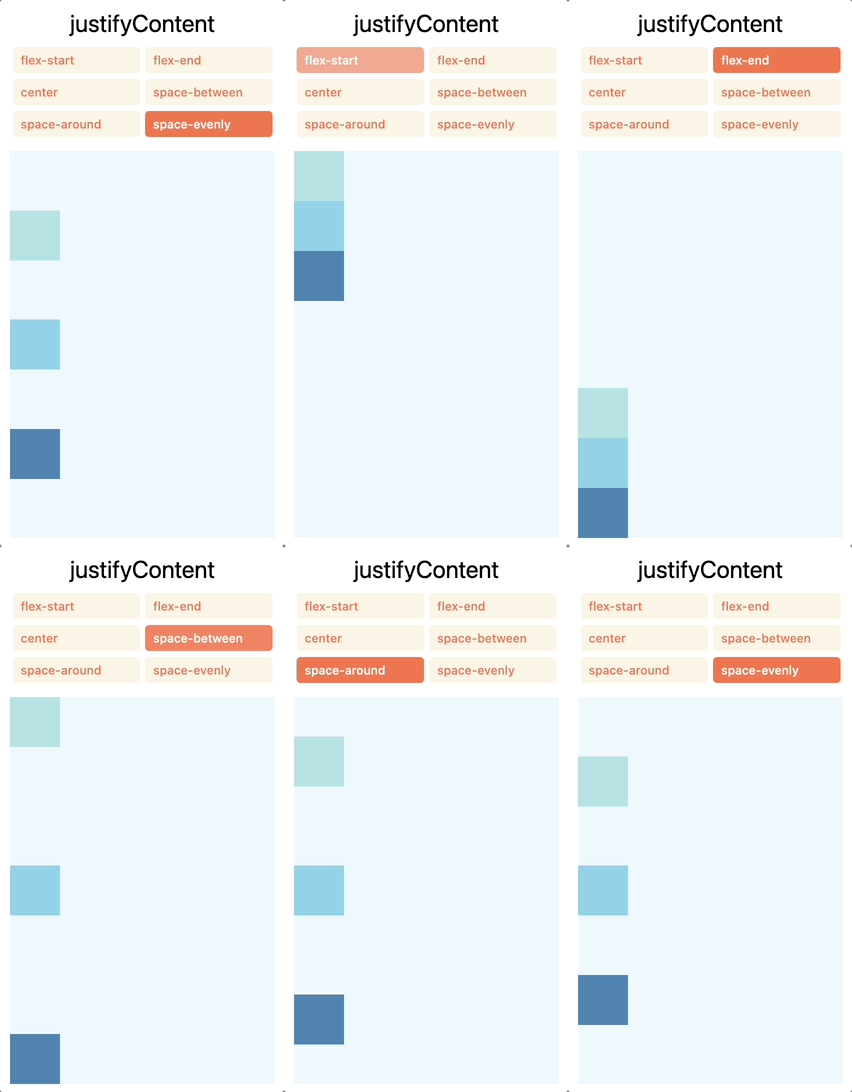
다음은 justifyContents를 적용할 수 있는 간단한 코드 예시입니다.
const FlexExample = () => {
  const justifyOptions = ["flex-start", "flex-end", "center", "space-between", "space-around", "space-evenly"];
  const [justifyContent, setJustifyContent] = useState(justifyOptions[0]);

  return (
    <View style={{ flex: 1, padding: 10 }}>
      <Button
        title="Change JustifyContent"
        onPress={() => setJustifyContent(justifyOptions[(justifyOptions.indexOf(justifyContent) + 1) % justifyOptions.length])}
      />
      <View style={{ flex: 1, marginTop: 8, backgroundColor: 'aliceblue', justifyContent }}>
        <View style={{ width: 50, height: 50, backgroundColor: 'powderblue' }} />
        <View style={{ width: 50, height: 50, backgroundColor: 'skyblue' }} />
        <View style={{ width: 50, height: 50, backgroundColor: 'steelblue' }} />
      </View>
    </View>
  );
};
alignItems & alignSelf
alignItems 프로퍼티는 해당 컨테이너의 교차축 안에서 자식 컴포넌트의 간격을 정렬하는 방법을 설정할 수 있습니다.
alignItems는 justifyContest와 유사하지만 주축이 아닌 교차축으로 자식 컴포넌트를 정렬한다는 것에 차이가 있습니다!
flexDirection이 row라면 alignItems는 세로 방향으로 정렬되고, column이라면 가로 방향으로 정렬됩니다.
alignSelf 프로퍼티는 alignItems를 재정의하여 만들어진 속성으로, 옵션과 효과는 alignItems와 동일합니다.
하지만 alignSelf는 자식 컨테이너에 전체에 영향을 미치는 대신에, 단일 하위 항목에 정렬을 적용하고 부모 컨테이너의 alignItems 값을 무시합니다.
alignItems와 alignSelf의 옵션은 동일하게 5개가 존재합니다.
• stretch (기본) : 컨테이너의 교차축 높이와 일치하도록 자식 컴포넌트의 길이를 늘립니다
• flex-start : 교차축의 시작 부분부터 자식 컴포넌트를 정렬합니다
• flex-end : 교차축의 끝 부분부터 컴포넌트를 정렬합니다
• center : 교차 축의 가운데에 컴포넌트를 정렬합니다.
• baseline : 공통된 기준선을 따라서 자식 컴포넌트를 정렬합니다.
→ 부모 컨테이너의 기준선이 될 수도 있으며, 주로 텍스트가 포함된 요소들의 문자 기준선을 맞추는 데 사용됩니다.
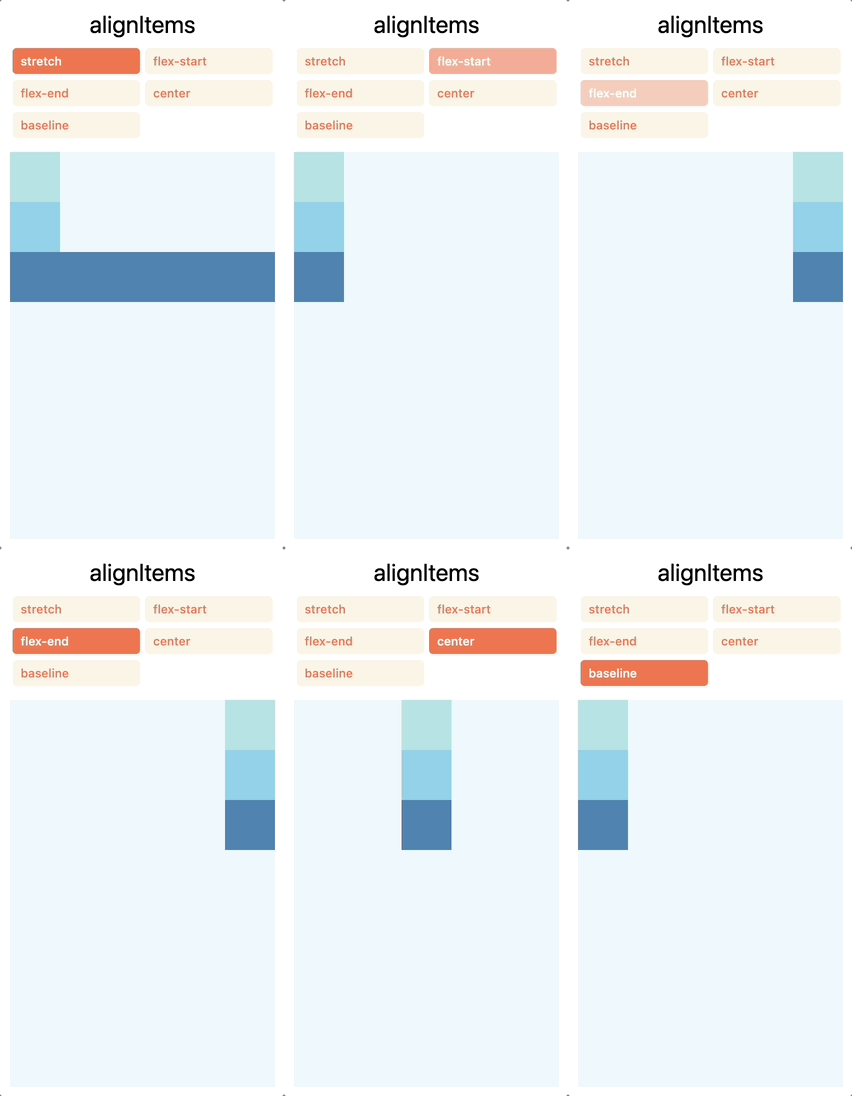
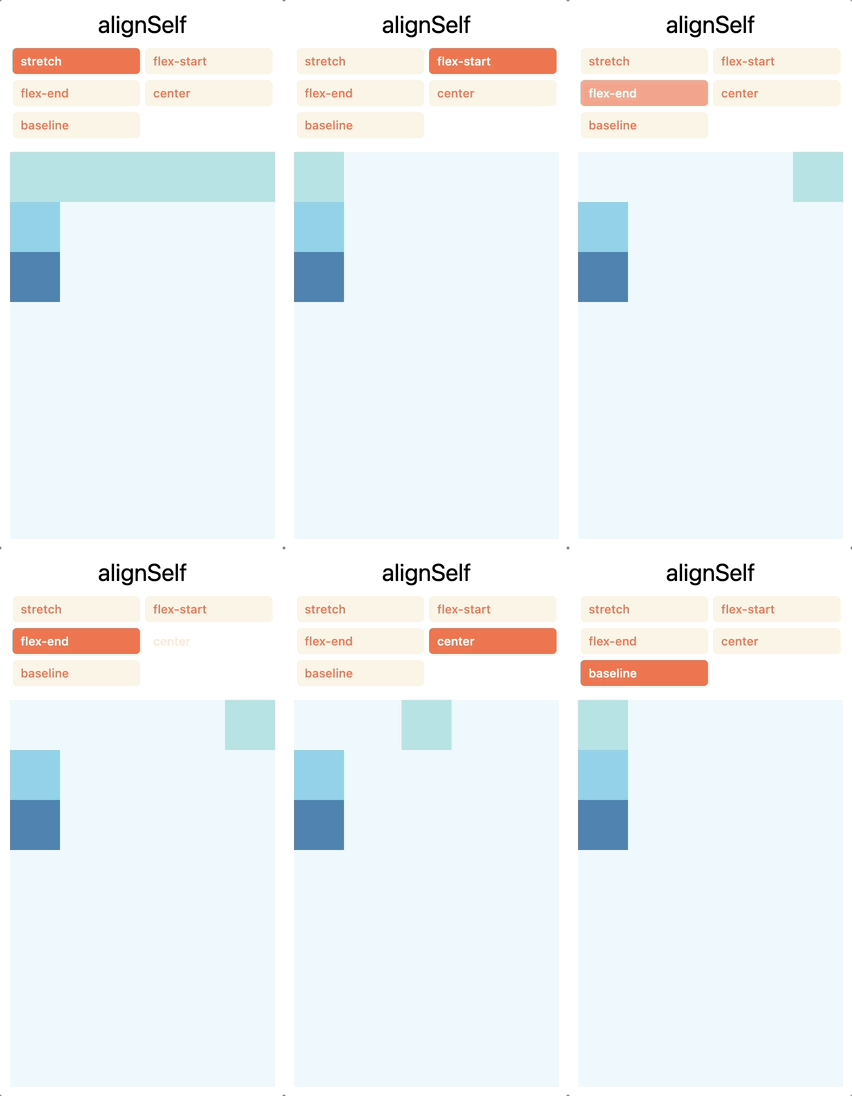
다음은 alignItems 속성을 적용한 예시 코드입니다.
const AlignExample = () => {
  const alignOptions = ["flex-start", "center", "flex-end", "stretch"];
  const [alignItems, setAlignItems] = useState(alignOptions[0]);

  return (
    <View style={{ flex: 1, padding: 10 }}>
      <Button
        title="Change alignItems"
        onPress={() => setAlignItems(alignOptions[(alignOptions.indexOf(alignItems) + 1) % alignOptions.length])}
      />
      <View style={{ flex: 1, flexDirection: "row", marginTop: 8, backgroundColor: 'aliceblue', alignItems }}>
        <View style={{ width: 50, height: 50, backgroundColor: 'powderblue' }} />
        <View style={{ width: 50, height: 50, backgroundColor: 'skyblue', alignSelf: "center" }} />
        <View style={{ width: 50, height: 50, backgroundColor: 'steelblue' }} />
      </View>
    </View>
  );
};
주의사항
stretch 속성이 효과를 가지려면, 자식 요소들이 교차축 방향으로 고정된 크기(fixed dimension)를 가지지 않아야 합니다.
alignItems: "stretch"를 설정해도 자식 요소의 width: 50같이 고정적으로 설정이 되어 있는 한 아무런 효과가 없습니다..
width: 50을 제거하면 자식 요소들이 부모 컨테이너의 교차축 크기에 맞게 늘어나는(stretch) 효과가 적용됩니다!
alignContent
alignContent는 컨테이너의 교차축을 따라서 자식요소들이 여러 줄이 생겼을 때 이 배치를 결정하는 프로퍼티입니다.
이 속성은 flexWrap으로 자식요소들이 여러 줄로 감싸질 때만 효과가 적용됩니다!
alignContent는 6가지의 옵션이 존재합니다.
• flex-start (기본) : 교차축의 시작 부분에 감싸진 줄을 정렬합니다
• flext-end : 교차축의 끝 부분에 감싸진 줄을 정렬합니다
• stretch : 컨테이너의 교차축 높이에 맞춰 감싸진 줄들이 늘어나게 합니다
• center : 중앙에 감싸진 줄들을 정렬합니다
• space-between : 교차축에 존재하는 공간에 줄들의 간격을 균일하게 나눠서 정렬합니다
• space-around : space-between과 동일하지만, 컨테이너 양 끝의 여백은 줄 사이 간격의 절반 크기로 설정됩니다
• space-evenly : 모든 줄 사이와 컨테이너 양 끝 여백까지 균등하게 간격을 나눕니다
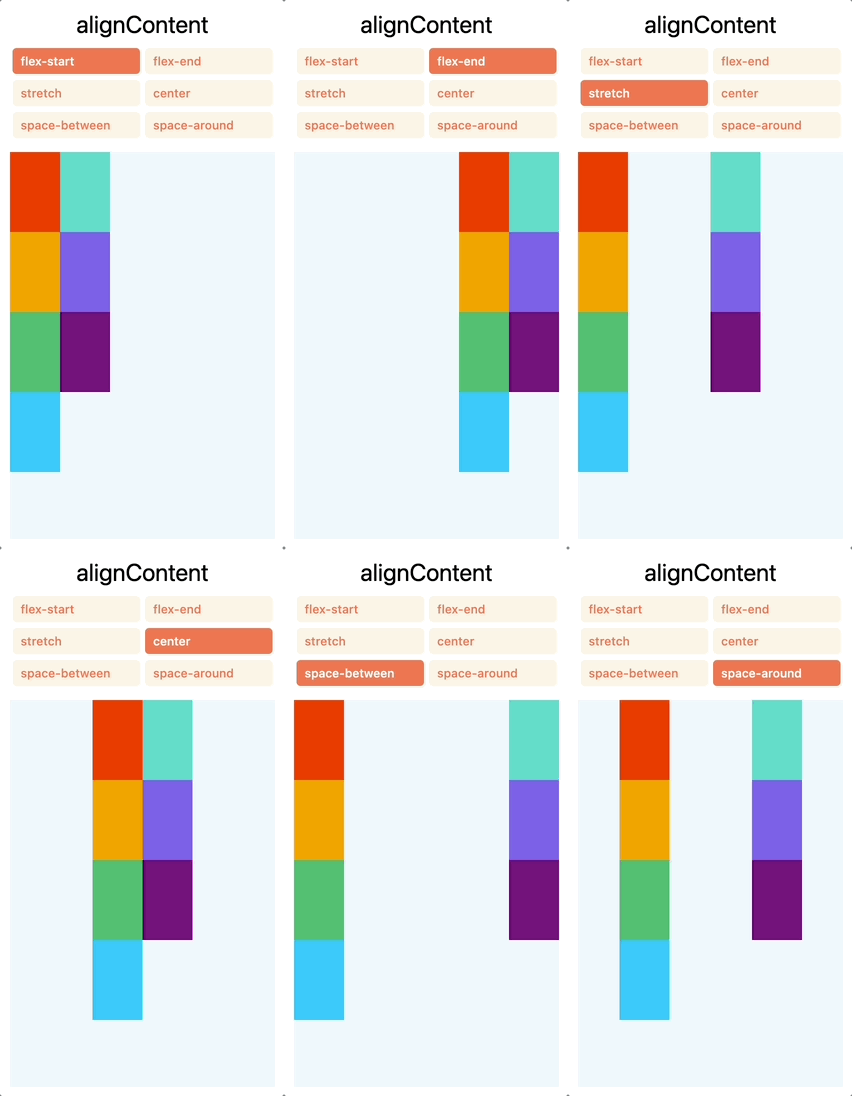
다음은 alignContent를 적용한 예시 코드입니다!
const AlignContentExample = () => {
  const alignOptions = ["flex-start", "flex-end", "stretch", "center", "space-between", "space-around"];
  const [alignContent, setAlignContent] = useState(alignOptions[0]);

  return (
    <View style={{ flex: 1, padding: 10 }}>
      <Button
        title="Change alignContent"
        onPress={() => setAlignContent(alignOptions[(alignOptions.indexOf(alignContent) + 1) % alignOptions.length])}
      />
      <View style={{ flex: 1, flexWrap: "wrap", marginTop: 8, backgroundColor: 'aliceblue', alignContent, maxHeight: 400 }}>
        {["orangered", "orange", "mediumseagreen", "deepskyblue", "mediumturquoise", "mediumslateblue", "purple"].map(color => (
          <View key={color} style={{ width: 50, height: 80, backgroundColor: color }} />
        ))}
      </View>
    </View>
  );
};
flexWrap
flexWrap 프로퍼티는 컨테이너 내부의 아이템들이 주축 방향으로 배치되다가 넘쳐버릴 경우에 이를 어떻게 처리할 지 결정하는 옵션입니다.
간단하게 두 가지 중에 하나를 선택할 수 있습니다
• wrap : 컨테이너의 크기를 초과하면 여러 줄로 자동으로 줄을 바꿉니다
• nowrap : 모든 아이템을 한줄로 배치하고, 너비가 부족하면 아이템들이 잘립니다
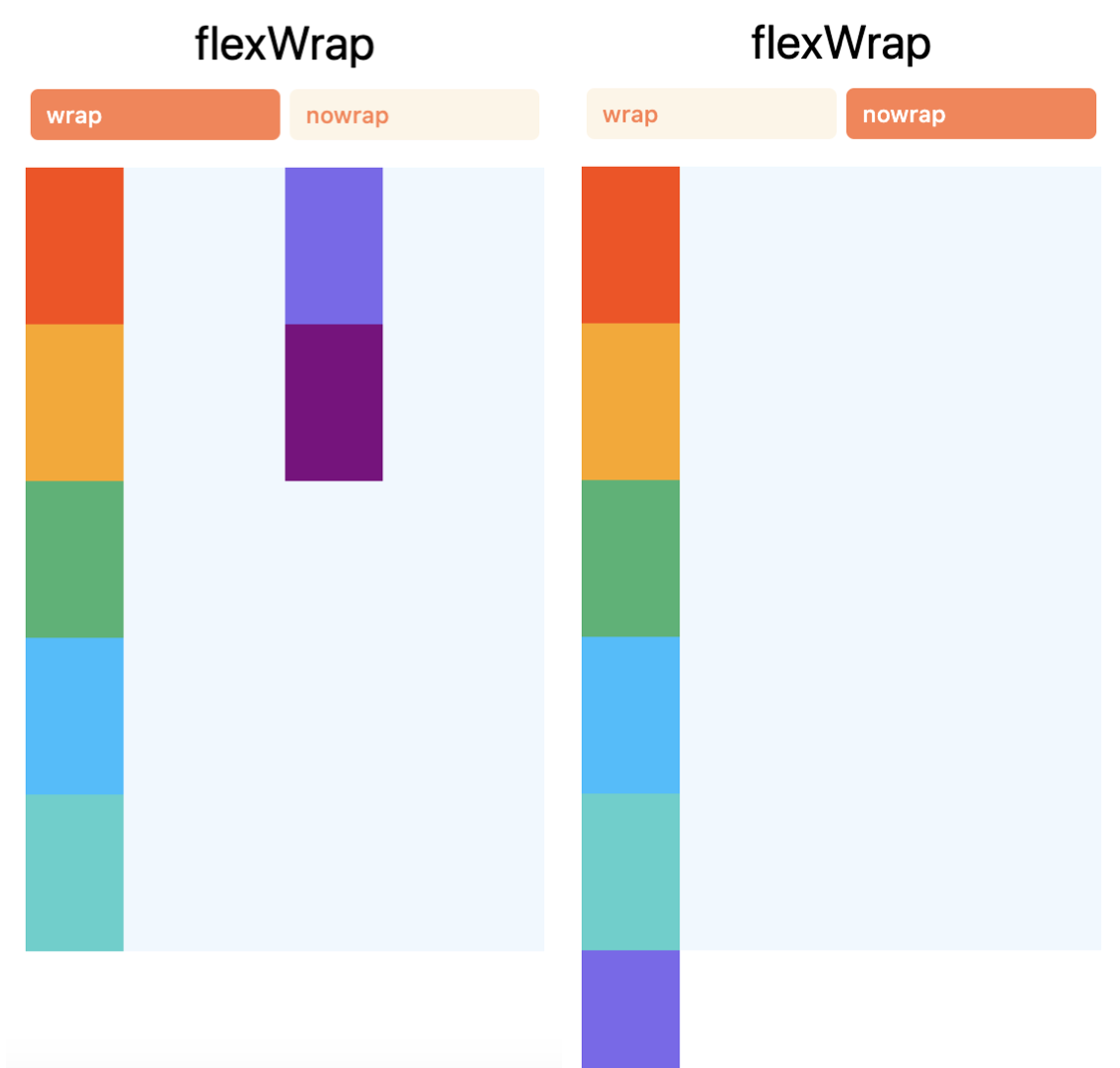
간단하게 적용해볼 수 있는 코드를 가져왔습니다!
const FlexWrapExample = () => {
  const wrapOptions = ["wrap", "nowrap"];
  const [flexWrap, setFlexWrap] = useState(wrapOptions[0]);

  return (
    <View style={{ flex: 1, padding: 10 }}>
      <Button
        title="Toggle flexWrap"
        onPress={() => setFlexWrap(wrapOptions[(wrapOptions.indexOf(flexWrap) + 1) % wrapOptions.length])}
      />
      <View style={{ flex: 1, marginTop: 8, backgroundColor: 'aliceblue', flexWrap, maxHeight: 400 }}>
        {["orangered", "orange", "mediumseagreen", "deepskyblue", "mediumturquoise", "mediumslateblue", "purple"].map(color => (
          <View key={color} style={{ width: 50, height: 80, backgroundColor: color }} />
        ))}
      </View>
    </View>
  );
};
지금까지 기본적인 React Native의 Flexbox 주요 속성에 대해서 알아보았습니다.
Flexbox를 잘 활용하면 다양한 크기의 화면에서도 유연하고 효과적인 레이아웃을 구성할 수 있습니다!
특히나 CSS로 스타일링을 해보신 분이면 용어도 비슷하기 때문에 더 쉽게 접근할 수 있다고 생각해요!!
아직 다루지 않은 shrink나 grow, gap과 같은 부분은 추후에 또 다뤄보도록 하겠습니다 😊
참고 : https://reactnative.dev/docs/flexbox [Layout with Flexbox]
console.log("공부나 합시다");